
Highwings USB C to HDMI Adapter
4.5Editor score
4K at 60Hz
No installation required
Braided nylon construction
Best HDMI Cord Adapters for Mac guide compares ten USB-C, Mini DisplayPort, and multiport options for 4K video, charging, and easy setup for office use.
Connecting a Mac to an external display often comes down to matching its video output with the right adapter. The most useful HDMI cord adapter for Mac combines dependable display output, broad compatibility, portable construction, and whichever charging or data features your setup actually needs.
This guide compares ten USB-C and Mini DisplayPort adapters based on their supplied specifications, including supported resolutions, charging capabilities, data ports, device compatibility, and physical design. It covers simple video adapters as well as multiport hubs for offices, presentations, and home entertainment.
Each review explains where a product fits and where it falls short, helping you distinguish a direct cable from a compact dongle or a hub with extra USB connectivity. Current listings, device support, and promotional terms can change, so verify the specifications against your Mac before purchasing.
4.5Editor score

4.6Editor score

4.5Editor score
The comparison below highlights each adapter's connection style, maximum stated video mode, charging support, and extra connectivity so you can quickly identify the option that best matches your Mac and display setup.




The Anker USB C to HDMI Adapter stands out as a dependable, focused solution for Mac owners who want one reliable USB-C-to-HDMI connection. Its supplied rating is 4.6 out of 5, and its key qualities include support for video up to 4K, broad compatibility with USB-C DP Alt Mode, USB4, and Thunderbolt connections, and a simple plug-and-play design.
We may earn a commission when you buy through this link, at no additional cost to you.
The adapter is particularly well suited to a MacBook owner who already owns a good HDMI cable and travels with it. Anker's aluminum casing is intended to improve heat dissipation, while the reinforced braided-nylon cable is designed to withstand repeated twisting and pulling. The result is a streamlined accessory that avoids unnecessary hubs, excess cables, and complicated software.
Its primary limitation is that it does not provide Power Delivery or charging. A Mac with only one USB-C port may therefore need to disconnect the adapter to recharge, although newer MacBook models with multiple USB-C ports can often keep the adapter connected while another port handles power. The adapter also cannot act as an HDMI input for capturing video back to a computer.
Overall, it is the most balanced pick in this guide for users who prioritize dependable video, broad compatibility, and a durable, uncomplicated design. Choose it when your goal is a dedicated Mac-to-HDMI link without extra USB ports. For a cable-first arrangement, the Warrky option is simpler; for simultaneous charging and USB-A access, consider the Apple multiport adapter.
The adapter can connect a compatible Mac to any TV or display with an HDMI port and stream video in up to 4K resolution. Actual resolution and refresh rate depend on the Mac, adapter capabilities, display, and connected HDMI cable.
Its lightweight aluminum housing and reinforced cable make it a natural fit for a laptop bag. Because the adapter contains no installation step, it also suits quick transitions between a desk and a meeting room.
We may earn a commission when you buy through this link, at no additional cost to you.
The Apple USB-C Digital AV Multiport Adapter is the premium choice in this roundup for Mac users who need more than a basic video converter. It earns a supplied rating of 4.5 out of 5 and combines HDMI display output, a standard USB port, and a USB-C charging connection in one compact adapter.
We may earn a commission when you buy through this link, at no additional cost to you.
This arrangement is especially useful with a MacBook that has limited ports. The USB-A connection can accommodate a flash drive, camera, or other standard USB device, while the USB-C port accepts a charging cable. Meanwhile, the HDMI side can mirror a Mac display to an HDMI-equipped television or projector and supports both video and audio output.
The important caveat is that an HDMI cable is not included. Buyers must already have a suitable cable or plan to purchase one separately. The product also requires macOS Mojave 10.14.6 or later, and the available standard USB port is singular, making it less flexible for users who need several peripherals attached at once.
This is the most complete Apple-oriented option in the guide and a sensible recommendation for a desk setup that needs display, charging, and occasional USB-A access. It is less appropriate for someone wanting several data ports or maximum portability. Buyers should also note that this is a multiport adapter, not a USB-C hub with broad video-resolution claims.
Combining display, charging, and USB-A connectivity reduces the need to unplug peripherals every time the Mac is connected to a large screen. That convenience makes the adapter particularly effective as a semi-permanent desk accessory.
The stated system requirements are macOS Mojave 10.14.6 or later and iOS 12.4 or later. It supports USB-C-enabled Macs and select iPad models through USB-C or Thunderbolt 3 connections.
We may earn a commission when you buy through this link, at no additional cost to you.
The Highwings USB C to HDMI Adapter offers an unusually clear combination of useful specifications and compatibility guidance. It has a supplied rating of 4.5 out of 5, supports 4K at 60Hz on compatible equipment, and is designed primarily for home-office use with a Mac, tablet, or other compatible USB-C device.
We may earn a commission when you buy through this link, at no additional cost to you.
Its USB-C male plug connects directly to the device, while the HDMI female end accepts the HDMI cable you already own. That design can be more convenient than a permanently attached short cable, particularly when your display is a short distance from the desk. Highwings also specifies DP Alt Mode compatibility clearly, which helps buyers confirm that their USB-C port supports video.
The adapter sends video and audio only from the USB-C source to an HDMI display. It does not charge the connected device and cannot carry an HDMI signal back to a USB-C destination. Highwings recommends a High Speed HDMI cable within 4.5 meters for stable 4K output and notes that the internal chip may become warm during high-resolution transmission.
It is a strong recommendation for a home office where one Mac must connect to a monitor, television, or projector without a multiport hub. The construction adds confidence through strain relief, gold-plated connectors, and a braided nylon jacket. Users willing to manage charging separately will find this a focused and economical way to obtain 4K at 60Hz.
When the source, display, and cable support the required mode, the adapter can deliver 4K at 60Hz. It also works with older HDMI 1.4, 1.3, and 1.2 displays, offering flexibility across different equipment generations.
The HDMI female connector lets you use a standard display cable rather than relying on a fixed, short lead. This can reduce cable clutter while preserving the option to place the Mac a comfortable distance from a large display.
We may earn a commission when you buy through this link, at no additional cost to you.
The Battony USB C to HDTV Adapter is a three-in-one option aimed at home theater, office, presentation, teaching, and exhibition environments. Its supplied rating is 4.3 out of 5, and it combines USB-C display connectivity, USB-A data support, and a charging connection in a slim aluminum-bodied package.
We may earn a commission when you buy through this link, at no additional cost to you.
The stated 4K UHD output is 3840 by 2160 at 30Hz, so it is better suited to standard 4K productivity and viewing than to high-refresh 4K gaming. Battony also specifies a high-speed USB Type-C 3.1 connection capable of transferring data at up to 5Gbps, with compatibility for common USB-A storage, cameras, input devices, and removable drives.
The broad compatibility list includes MacBook and MacBook Pro models from 2015 through 2018, along with numerous Dell, HP, Acer, Lenovo, Huawei, and other USB-C computers. That historical range may be useful for an older machine, but buyers should confirm that their specific model supports the required USB-C video mode rather than relying only on the presence of a USB-C port.
This adapter is a good fit for a Mac user who wants more than a video-only dongle and does not need 4K at 60Hz. Its combination of charging and USB-A access makes it useful as a compact workstation hub. It is less suitable for high-refresh displays, demanding data workflows, or modern systems requiring maximum charging throughput.
The USB-A connection expands the adapter beyond display use, allowing compatible flash drives, cameras, removable drives, mice, and keyboards to be connected. That makes the unit more useful for temporary office stations.
Its aluminum body is described as improving heat dissipation, while the compact profile is suitable for carrying in a pocket. A plug-and-play design avoids driver installation for compatible USB-C systems.
We may earn a commission when you buy through this link, at no additional cost to you.
The Warrky USB C to HDMI Cable is the simplest physical solution in the guide. It combines a six-foot cable with USB-C and HDMI connectors, eliminating the need for a separate adapter and display lead. The supplied customer rating is 4.5 out of 5.
We may earn a commission when you buy through this link, at no additional cost to you.
The cable is specified for 4K at 60Hz and is also described as backward compatible with 1440p at 144Hz and 1080p at 240Hz. It supports mirroring and extending content from compatible USB-C devices to monitors, televisions, and projectors, with HDCP compliance stated for media streaming.
Its six-foot length provides useful flexibility when the Mac sits on a desk and the display is farther away, though the fixed length may be too short or unnecessarily long in some rooms. It also does not solve charging or USB-A connectivity. As with any display adapter, the source device must support USB-C DP Alt Mode or Thunderbolt 3 or 4.
The best reason to choose this option is convenience. It is one cable rather than an adapter plus an HDMI wire, and its construction includes gold-plated connectors, thicker copper wiring, an aluminum shell, and a nylon braid. Mac users who want a direct connection without carrying multiple pieces will appreciate the reduced setup, while hub-oriented buyers should look to a multiport alternative.
The integrated six-foot lead connects a compatible Mac directly to an HDMI display. This makes packing and deployment easier, especially for presentations where minimizing the number of accessories is valuable.
The stated device list includes recent MacBook Pro, MacBook Air, iMac, Mac Studio, and Mac Pro models as well as numerous phones, tablets, and PCs. Compatibility still depends on the source supporting DP Alt Mode or the appropriate Thunderbolt standard.
We may earn a commission when you buy through this link, at no additional cost to you.
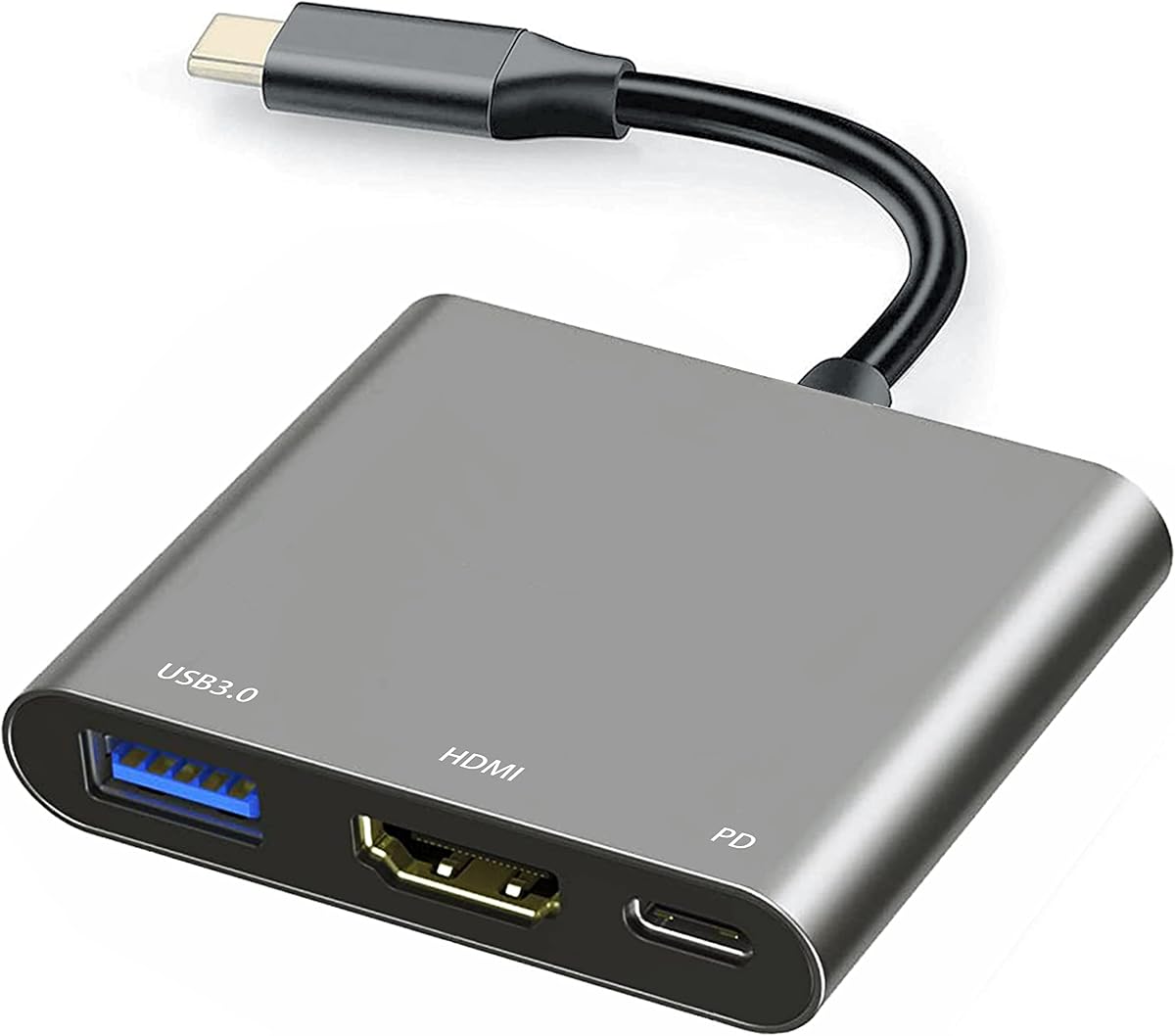
The USB C to HDMI Multiport Adapter is a compact three-port hub designed to add display, charging, and USB connectivity to a compatible Mac or tablet. It has a supplied rating of 4.2 out of 5 and includes an HDMI port, a USB-C charging port, one USB 3.0 port, and one USB 2.0 port.
We may earn a commission when you buy through this link, at no additional cost to you.
Its stated charging capacity is up to 27W, allowing a compatible laptop or tablet to charge while the adapter is in use. The USB ports support data transfer, OTG, and accessories such as a mouse, keyboard, flash drive, mobile hard disk, or card reader. Display output supports 4K and is stated as backward compatible with 2K, 1080p, and 720p modes.
The gray aluminum housing measures 60 by 55 by 10 millimeters and includes a 130-millimeter attached cable. That short lead may be convenient for reducing desk clutter, although a fixed cable can also limit positioning compared with a detachable adapter. The product does not claim the same high-refresh capability as several 4K-at-60Hz alternatives.
This is a practical choice for users who want a pocketable hub with useful ports. Its MacBook Pro, MacBook Air, iPad Pro, Chromebook, Surface Book, and Galaxy compatibility claims make it relevant across several device ecosystems. Choose it for general office connectivity, but verify that 27W charging is enough for your Mac and that you do not require high-refresh 4K.
The combination of fast and general-purpose USB ports allows users to connect high-speed storage alongside conventional peripherals. OTG support broadens the range of compatible accessories beyond a basic display connection.
The small aluminum housing and short attached lead are intended to reduce desk clutter. Its size also makes the hub convenient to carry between a home office, classroom, or shared meeting space.
We may earn a commission when you buy through this link, at no additional cost to you.
The Acer USB C to HDMI Adapter is designed for Mac and other compatible laptop users who want a display connection, fast charging, and one USB-A port in a compact unit. It carries a supplied rating of 4.4 out of 5 and is built around a three-in-one hub design.
We may earn a commission when you buy through this link, at no additional cost to you.
Its most notable feature is the charging port, which is rated for up to 100W with compatible PD protocols. Acer notes that charging speed depends on the host device, charger, and cable, and recommends a charger and cable of at least 45W. The USB-A 3.0 port supports data transfer up to 5Gbps but does not provide charging.
For video, the hub supports HDMI output up to 4K at 30Hz. It also mirrors compatible iPhone or iPad screens to a television, projector, or monitor. The source USB-C port must support DisplayPort Alternate Mode, and the product does not support portable monitors or use an HDMI female port.
The Acer is a strong fit for a permanent desk where one MacBook port handles charging while another connects to a display and accessory. The 30Hz ceiling makes it less attractive for high-refresh gaming or demanding motion work, while listed exclusions involving certain iPhones, iPads, Galaxy A devices, portable monitors, and other products require care.
A maximum 100W power-delivery rating can suit many demanding USB-C laptops. Actual performance depends on the machine, charger, and cable, so buyers should confirm all three support the intended charging profile.
The stated operating-system support includes Windows, ChromeOS, Linux, and macOS 10.5 or later. The adapter operates through plug-and-play use and requires no additional drivers on compatible systems.
We may earn a commission when you buy through this link, at no additional cost to you.
The Kinhaly USB C to HDMI Adapter is a two-in-one option intended for home theater, live streaming, presentations, and mobile entertainment. It has a supplied rating of 4.2 out of 5 and combines a claimed 4K-at-60Hz HDMI output with a dedicated USB-C charging connection.
We may earn a commission when you buy through this link, at no additional cost to you.
The adapter is designed for USB-C devices that support DisplayPort Alternate Mode. Its compatibility list includes iPhone 15 and 16 series models, MacBook Pro models from 2015 through 2024, MacBook Air models from 2018 through 2024, iPad Pro models from 2018 through 2024, iMac models from 2017 through 2024, and numerous Samsung devices.
Setup is presented as straightforward: connect the relevant cables and trust the device if prompted. However, the product information specifically warns that protected applications such as Netflix, Prime Video, Amazon Video, HBO Go, and Hulu may not work because of digital-content protections. This limitation matters when evaluating the adapter primarily as a streaming device.
The adapter makes sense for a Mac user who wants to display video while maintaining a charging connection, especially when a single USB-C port is available. It is less appropriate for DRM-heavy streaming services. Buyers should also understand that the product does not mirror an iPhone automatically in every context, despite broad language in the listing.
Keeping a dedicated charging path available can be valuable during long viewing sessions or presentations. The adapter is designed to maintain a charging connection while a display is attached.
The stated app limitations are important for anyone planning to watch subscription video. Protected content may refuse an external display even when standard apps and locally stored media work normally.
We may earn a commission when you buy through this link, at no additional cost to you.
The BENFEI USB C to HDMI Adapter is a compact, video-focused option for compatible MacBook, iMac, iPad, and USB-C devices. Its supplied rating is 4.4 out of 5, and it supports a broad collection of output modes, including 3840 by 2160 at 60Hz, 3840 by 2160 at 30Hz, 2K at 144Hz, 1080p, and 720p.
We may earn a commission when you buy through this link, at no additional cost to you.
An integrated chip converts the USB-C digital signal to HDMI, while a plated USB-C connector is intended to resist corrosion and abrasion. Molded strain relief adds protection where the adapter meets its cable, making it suitable for repeated insertion and removal. The compact body is designed to fit easily in a pocket or laptop bag.
The adapter does not provide charging, and the source device must support USB-C DP Alt Mode. Consequently, it is a better match for users with multiple USB-C ports, a desktop-style setup, or a Mac that can charge through another connection. It cannot capture HDMI video back into the Mac or operate as a USB data hub.
For a MacBook owner seeking high-resolution and high-refresh display options without a bulky multiport hub, this is a strong recommendation. Its listed compatibility includes 13-inch and 15-inch MacBook Pro and Air models, iMac models, and many non-Apple systems. The strongest reasons to choose it are its 4K-at-60Hz support, compact form, and broad display-mode selection.
The adapter supports several demanding display modes rather than limiting itself to 4K at 30Hz. A compatible Mac, display, and cable are still necessary to achieve the selected resolution and refresh rate.
The small body and integrated cable make the adapter easy to carry. It is a practical choice when a presenter needs to connect temporarily to a projector or a client display.
We may earn a commission when you buy through this link, at no additional cost to you.
The BENFEI Mini DisplayPort to HDMI Adapter is an important option for Macs that use Mini DisplayPort or Thunderbolt 2 rather than USB-C. It has a supplied rating of 4.6 out of 5 and supports resolutions up to 3840 by 2160 at 30Hz, along with 1920 by 1200 and 1080p output.
We may earn a commission when you buy through this link, at no additional cost to you.
The adapter uses gold-plated pure copper connectors and multiple shielding to support stable audio and video transmission. It also provides audio pass-through for uncompressed digital 7.1, 5.1, or two-channel audio. Its aluminum alloy shell and unibody construction create a slim unit designed for portable use.
Compatibility is broad across Apple and Windows hardware, including MacBook, MacBook Pro, MacBook Air, iMac, Mac mini, Mac Pro, numerous Microsoft Surface models, and many laptops from Dell, Lenovo, Acer, HP, Google, ASUS, Toshiba, and other brands. It transmits only from a Mini DisplayPort source to an HDMI display, so it cannot be used with a USB-C port.
This is the right choice for an older or still-supported Mac with Mini DisplayPort. It is not the right choice for a modern USB-C Mac, where a USB-C DP Alt Mode adapter will be needed. Within its native use, however, the 4.6 rating, robust connector design, broad device list, and stated 15,000-plus bend lifespan make it a convincing long-term accessory.
The connector is specifically Mini DisplayPort, not a full-size DisplayPort, USB-C, Thunderbolt 3, or Lightning plug. Checking the shape and label of the Mac's port prevents an otherwise simple connection from being attempted with the wrong adapter.
The stated bend lifespan of more than 15,000 cycles supports repeated use in portable environments. Gold plating, shielding, and the aluminum shell are all intended to promote dependable signal transmission and durability.
We may earn a commission when you buy through this link, at no additional cost to you.
The right adapter depends primarily on your Mac's physical video port, the display and resolution you want, and whether you also need charging or USB data connections. Comparing these factors before buying prevents compatibility problems and unnecessary expense.
USB-C and Mini DisplayPort adapters solve different connection problems. Modern MacBook, iMac, Mac mini, and Mac Studio models generally use USB-C for video, while some older Macs use Mini DisplayPort or Thunderbolt 2. A USB-C adapter will not fit a Mini DisplayPort socket, and the BENFEI Mini DisplayPort adapter in this guide is explicitly not a USB-C adapter. Check the physical port and your Mac's technical specifications before selecting a model.
Choose the connector that matches your Mac, then confirm that it supports video output. The presence of a USB-C port alone does not guarantee that every port or device configuration can transmit video. Several products in this guide specifically require DisplayPort Alternate Mode, and the Highwings listing makes that requirement especially clear.
Resolution and refresh rate are separate parts of a display mode. A product may support 4K at 30Hz but not 4K at 60Hz, which matters for smooth motion, detailed work, and compatible high-refresh monitors. The Anker, Highwings, Warrky, Kinhaly, and BENFEI USB-C options list support for 4K at 60Hz, while the Apple, Battony, Acer, and Mini DisplayPort alternatives specify 4K at 30Hz.
The Mac, adapter, display, and HDMI cable must all support the desired mode. Check the display's input specifications and use an appropriate HDMI cable. Even when every component is compatible, macOS display settings may default to a lower resolution or refresh rate until the user selects the desired mode.
Video-only adapters are smaller and simpler, while hubs with USB-C charging inputs can keep a Mac powered during prolonged display use. The Apple adapter includes a USB-C charging port, the Acer hub supports up to 100W, the Battony and general multiport options include charging, and the Kinhaly adapter adds a dedicated charging connection. The Anker, Highwings, Warrky, and BENFEI USB-C products do not provide charging.
Charging support is especially useful on a MacBook with only one USB-C port. If your Mac has multiple USB-C ports, a simpler video adapter may be sufficient. Check the charger and cable requirements, because the maximum adapter rating does not guarantee the same result with every Mac or power supply.
A multiport hub can save time when a Mac regularly connects a mouse, keyboard, flash drive, camera, card reader, or storage drive. The Apple adapter offers one standard USB-A port, the Battony and general multiport adapter include USB-A connectivity, and the Acer includes USB-A 3.0. Users who regularly move high-speed files should pay attention to the stated transfer rate rather than counting ports alone.
Some hubs can also support OTG, allowing a wider selection of accessories. The USB-A port on the Acer is for data rather than charging, and the singular USB port on the Apple adapter may become a bottleneck for a desk that routinely uses several peripherals. Choose the number and type of ports around your actual workflow.
A direct USB-C-to-HDMI cable, such as the Warrky option, minimizes the number of pieces that must be carried. A USB-C male-to-HDMI female adapter, such as Highwings, lets you reuse existing HDMI leads and can offer more placement flexibility. Multiport hubs work well at a fixed desk but tend to be bulkier when portability is the priority.
Consider cable length, desk layout, and the direction of the signal. The Highwings and BENFEI Mini DisplayPort adapters accept a separate HDMI cable, while the Warrky product has a fixed six-foot lead. Most video adapters send the signal in only one direction, so they cannot be used to capture an HDMI source into a Mac.
External display support does not guarantee that every streaming service will show protected content. The Kinhaly product specifically states that protected applications such as Netflix, Prime Video, Amazon Video, HBO Go, and Hulu may not work. Other adapters can also encounter application-specific restrictions, so check the service requirements for your intended content.
macOS may also ask you to approve a connected device or adjust display arrangements. Local media, presentations, browser content, and many productivity applications generally place fewer restrictions on external video than encrypted streaming services. Review this limitation before buying a media-focused adapter for a television.
A frequently carried adapter should tolerate repeated bending, pulling, and insertion. Several options use aluminum housings for heat dissipation, while the Highwings and Warrky products add braided nylon jackets. The Highwings and general multiport products also mention reinforced or molded strain relief around connection points.
Portability should be balanced against functionality. A lightweight video-only adapter may be ideal for presentations, whereas a hub with charging and data ports is more useful beside a permanent workstation. The Acer, Apple, and Battony options are stronger choices for fixed setups, while the Warrky and BENFEI adapters are easy to carry.
An HDMI adapter for a Mac normally converts DisplayPort Alternate Mode video from USB-C and sends it to an HDMI display. It is not automatically a capture card, video converter, or HDMI input device. The Highwings product explicitly supports one-way USB-C-to-HDMI output, and the BENFEI Mini DisplayPort adapter transmits only from Mini DP to HDMI.
This distinction matters if you hope to record a game, connect a camera, or feed footage from a television into a Mac. None of the listed specifications describes an HDMI capture function. For those tasks, use a dedicated capture device designed for the required source and software workflow.
Start by confirming that the Mac's video port matches the adapter connector and that the USB-C device supports DisplayPort Alternate Mode when applicable. Connect the adapter to the Mac first, connect an HDMI cable to the display, and then select the appropriate input source on the television or monitor. For a hub, attach the power cable to the charging port and connect only the peripherals you intend to use.
On macOS, open the display settings after the hardware is connected. Choose the desired resolution and refresh rate, then use the arrangement controls to mirror the Mac display or extend it to a second screen. If a protected streaming service refuses to display, review the application's external-display rules. Restarting the app or Mac may resolve an initial trust prompt, but DRM restrictions are enforced by the service and are not necessarily a hardware fault.
To care for the adapter, insert and remove connectors by holding the metal plug rather than pulling on the cable. Avoid sharp bends near the strain relief, especially with the Highwings, Warrky, and other braided products. Keep the connection dry, provide airflow around the housing, and do not continue using a unit that becomes unusually hot or shows damaged insulation. When traveling, coil attached cables loosely and store the adapter in a pocket or a separate protective pouch.
No. The Mac's USB-C port must support DisplayPort Alternate Mode or an appropriate Thunderbolt connection that can carry video. Although many modern Macs support video output, you should check the specifications for your exact model and port. Some third-party USB-C devices advertise charging or data only and cannot transmit a display signal.
It depends on the adapter. The Apple, Acer, Battony, Kinhaly, and general multiport products include a USB-C charging input, while several video-only adapters explicitly do not support charging. Charging speed also depends on the Mac, charger, and cable, so the adapter's maximum wattage should be checked against the device's requirements.
Not necessarily. Some streaming services block external displays through digital-rights protection even when the hardware connection is correct. The Kinhaly listing specifically names Netflix, Prime Video, Amazon Video, HBO Go, and Hulu as protected applications that may not work. Check the service's current support policy before purchasing for that purpose.
A USB-C adapter generally has a USB-C plug and an HDMI female port, allowing you to use any suitable HDMI cable. A USB-C-to-HDMI cable integrates both connectors and a fixed length of cable. The adapter style is useful when you want different cable lengths, while the direct cable is easier to carry because it eliminates one piece.
Only if that MacBook has a Mini DisplayPort or compatible Thunderbolt 2 port. Most modern MacBook models use USB-C instead, so a Mini DisplayPort adapter will not physically fit. Confirm the exact port on your Mac before ordering, and choose a USB-C DP Alt Mode adapter for USB-C-only systems.
No. The Mac, adapter, display, and HDMI cable must support the desired 4K resolution and refresh rate. The selected macOS display mode also matters, and some products list 4K at 30Hz while others support 4K at 60Hz. Check all four elements before assuming a connection will run at the adapter's highest stated mode.
They can be, provided the projector has an HDMI input and the Mac supports the required video output. A compact video adapter such as Anker, Highwings, Warrky, or BENFEI is easy to carry, while a multiport hub is more useful when a presenter also needs charging or peripheral access. Test the presentation setup in advance when possible.
The listed adapters are designed for output from a Mac or compatible USB-C device to an HDMI display, not for capturing an external HDMI source. The Highwings and BENFEI Mini DisplayPort products are explicitly one-way. Recording external video requires a suitable HDMI capture device and compatible software.
The Anker USB C to HDMI Adapter is the strongest all-purpose recommendation because it combines a strong supplied rating, 4K support, broad USB-C compatibility, and durable construction without unnecessary complexity. Highwings is a compelling value-focused alternative for 4K at 60Hz, while Apple's multiport adapter is the premium choice for users who need HDMI, USB-A, and charging in one Mac-oriented accessory.
Prioritize the physical connector first, then confirm video mode, charging, and data requirements. A direct cable is convenient for travel, a USB-C male-to-HDMI female adapter lets you reuse existing display cables, and a multiport hub is most useful at a permanent desk. Older Mini DisplayPort Macs require a dedicated adapter, while modern USB-C systems should use a DP Alt Mode-compatible model.
Before ordering, verify the exact Mac model, port type, target display resolution, refresh rate, and any streaming-app restrictions. Product listings and promotional terms can change, so confirm the current specifications and compatibility information on the retailer's page. With those details confirmed, the right adapter can provide a dependable bridge between the Mac and a larger display.
A practical comparison of USB-C and Mini DisplayPort adapters for Mac displays, presentations, charging, and portability